
Using an SSH Key to clone a repository can be the only way you have sometimes.
Let’s see how it works and what is the little caveat about it.
Recommended Key Types
The two most popular SSH key generation algorithms are:
- RSA: Widely supported though less secure.
- Ed25519: More cryptographically strong, recommended for modern systems
Some systems don’t support the `Ed25519` type.
Generating an SSH Key
Open a terminal and run:
|
|
Key Generation Process
- When prompted to “Enter file in which to save the key”, press Enter to accept the default location or type your key name (for ex.
id_rsa_my_great_app). - You’ll be asked to enter a passphrase:
- Recommended: Add a passphrase for extra security
- Optional: Press Enter to skip passphrase
Key Location
The default location will be the current directory where you run the command of key creation. It’s recommended to generate the keys into .ssh folder.
After Generation
A private key and a public key will be created.
The public key file will have a .pub extension.
Keep your private key secret and secure.
Next Steps
Use the public key (for example id_rsa_my_great_app.pub) when setting up SSH access on services like Azure DevOps, GitHub, GitLab, or remote servers.
For example in Azure DevOps:
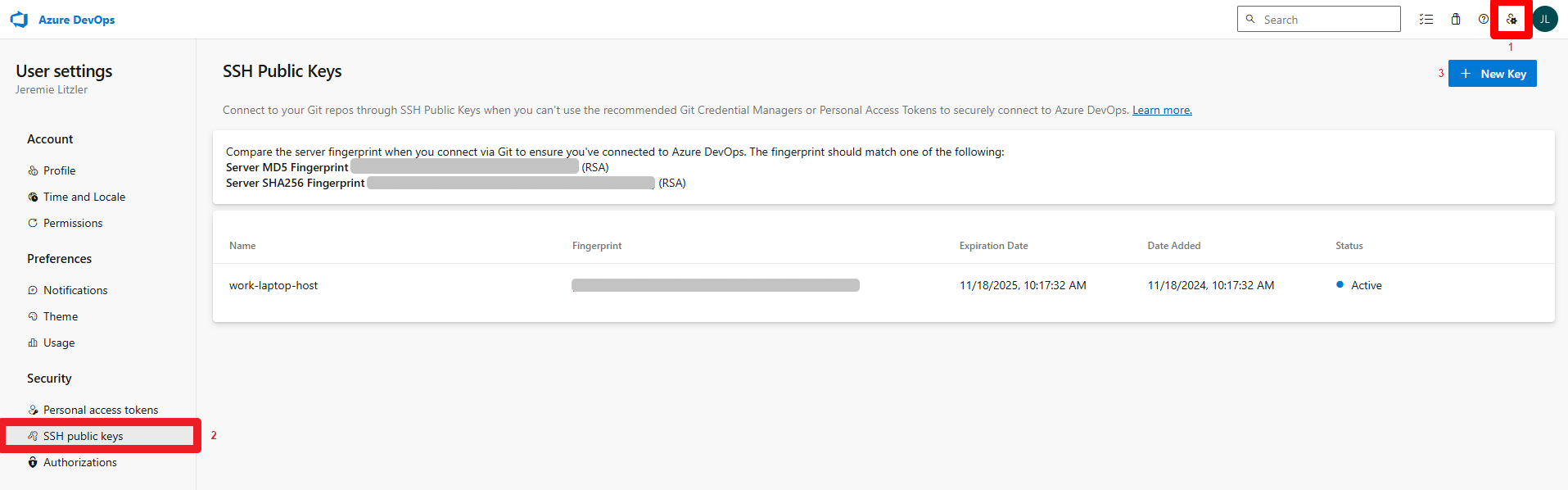
- Click “SSH Public Keys” menu from the top right menu.
- You should land in “SSH Public Keys” page.
- Add a new key through “New Key” and name the key and paste the public key.
You can view the public key content using: cat ~/.ssh/id_rsa_my_great_app.pub.
Caveat: Registration of SSH Key
The issue that could happen is that, in the case of Azure DevOps, the SSH key isn’t used to accept any Git command.
In on many repositories, you can clone using HTTPS and SSH:
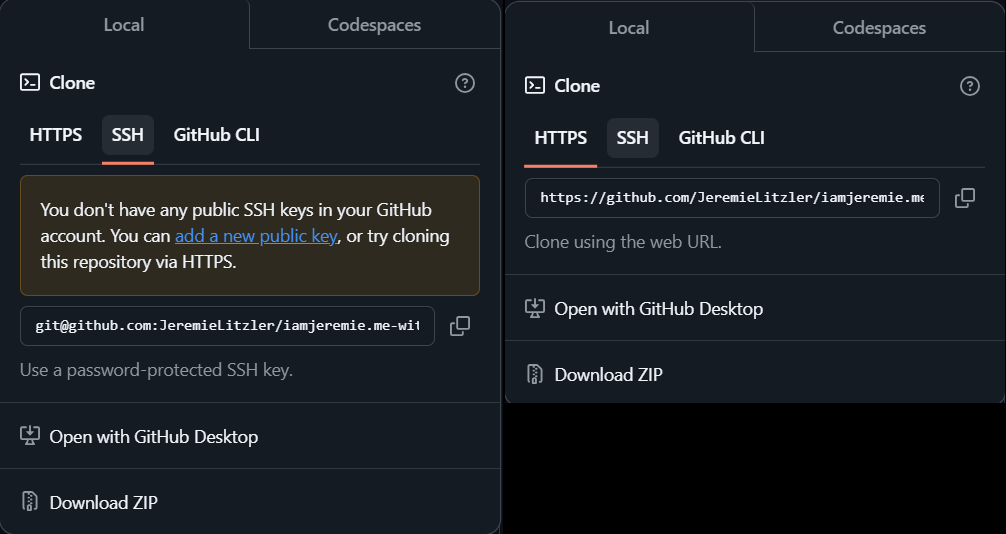
Using HTTPS usually requires login and password credentials. With Azure DevOps, you can’t always do that.
Using SSH requires the SSH keys: the public key is known to the server and you hold the private key.
I ran into an issue where, even though the server knew the public key, the Git command to clone wouldn’t pick up the SSH key.
To solve that, you have to explicitly tell the SSH client to register the new key created:
|
|
In case you need to run this often, add a Git alias:
|
|
That’s it for today.
Follow me
Thanks for reading this article. Make sure to follow me on X, subscribe to my Substack publication and bookmark my blog to read more in the future.
Photo by Thirdman.
